
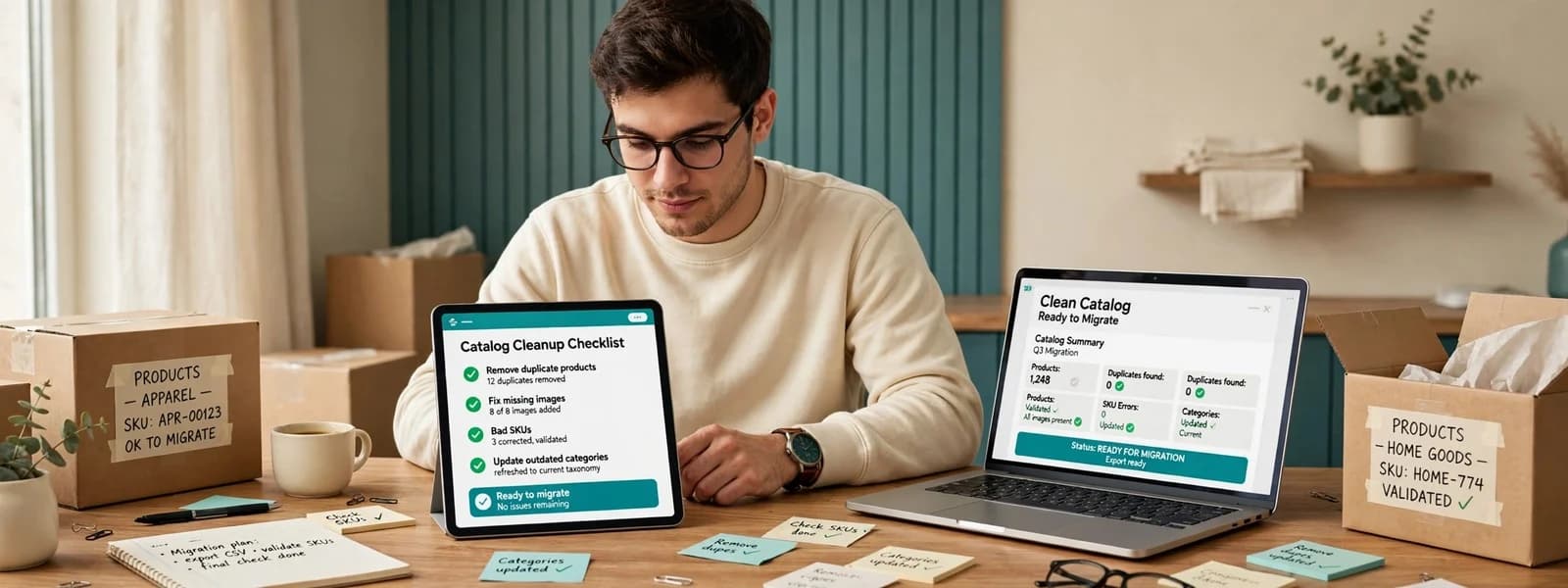
Catalog cleanup before a migration is the cheapest point in a store’s life to fix years of messy product data. Everything is being exported, mapped and imported anyway; cleaning it on the way through costs a fraction of fixing it on the new platform afterwards, when the data is live and every change is visible. The work comes down to five things: decide what not to migrate, make identifiers unique, normalise attributes and variants for the new platform’s model, fix content and images, and prove the import with counts and samples before launch.
Why clean before, not after
A migration forces you to look at every field of every product, because each one has to be mapped to something on the new platform. That makes it the one moment when cleanup has no extra discovery cost. After launch, the same problems are harder to fix: products have new URLs, feeds and marketplaces depend on the new data, and the team is busy learning a new admin.
Messy data also causes migration failures directly. Duplicate SKUs break imports and inventory syncs. Inconsistent option names produce variants that cannot be combined. HTML copied from old editors breaks layouts on the new theme. On most migrations we run, fixing data takes longer than moving it.
Step 1: export everything and look at it
Export the full catalog from the current platform: products, variants, options, categories, images, custom fields, SEO fields, inventory, and anything stored by apps or plugins. Add sales and traffic per product from analytics. Then profile it: how many products, how many variants per product, which fields are empty, which values repeat with different spellings, which SKUs appear twice.
This profile usually changes the plan. It is common to find a large share of products that have not sold in years, or a single “Colour” option spelled several ways across the catalog.
Step 2: decide what not to migrate
- Dead products: discontinued, never restocked, no sales in [X] months. Do not migrate them as live products, but check their URLs for traffic and backlinks first; those still need a redirect to the closest equivalent.
- Duplicates: the same product listed twice, often from an old import or a supplier feed. Merge into one, keep the better content, redirect the other URL.
- Test and placeholder products left over from past launches.
- Unused categories: empty, one-product or seasonal categories nobody maintains.
- Orphaned custom fields from apps you no longer use.
Record every decision in the mapping sheet, so the redirect map and the data team work from the same list.
Step 3: fix identifiers
Every variant needs a unique SKU, and it must be the same SKU your warehouse, ERP and marketplaces use. Check for duplicates, blanks, leading and trailing spaces, and SKUs that differ only by letter case. Also check barcodes (GTIN/EAN/UPC): many shopping channels rely on them, and Google Merchant Center’s product data specification describes when a GTIN is required.
Step 4: normalise attributes and variants for the new platform
Each platform models products differently, so this step depends on where you are going:
- Shopify uses options and variants, with extra structured data in metafields; the product CSV format shows exactly what it expects.
- BigCommerce supports variant options and modifiers (options that change price or add input without creating a variant), plus custom fields.
- WooCommerce uses attributes and variations; its product CSV importer documents the columns.
Then clean the values themselves:
- One spelling per value: “Navy”, not “navy”, “Navy Blue” and “NAVY”.
- Consistent units and formats: centimetres or inches, one decimal separator.
- Option names that match across products (“Size”, not “Size”, “Sizes” and “Shoe size”), so filters work on the new store.
- Attributes that shoppers filter by stored as structured fields, not buried in descriptions.
This is repetitive work, and a place where AI tools help, with a person reviewing low-confidence changes. We describe that approach in what to automate first with AI.
Step 5: fix content and images
Descriptions
Descriptions copied from old editors and supplier sites often carry inline styles, fonts, broken tables and links to the old domain. Strip the formatting to clean HTML, fix or remove links, and flag products whose description is still the supplier’s copy word for word; those are candidates for rewriting after launch.
Images
- Remove duplicates and images that belong to other products.
- Replace low-resolution images where better ones exist.
- Give files descriptive names and write alt text that describes the image.
- Make sure each variant has the right image assigned, so the new store shows the colour the shopper picks.
SEO fields
Export titles, meta descriptions and URL handles, and decide which to keep. Pages that rank well should usually keep their titles and content; fix only what is clearly broken, and change one thing at a time where rankings matter.
The catalog cleanup checklist
| Area | Common problem | Fix | Owner |
|---|---|---|---|
| Scope | Dead, duplicate and test products | Exclude or merge; redirect URLs with value | Merchandising |
| SKUs | Duplicates, blanks, case differences | One unique SKU per variant, matching ERP | Operations |
| Barcodes | Missing or invalid GTINs | Fill from supplier data; validate check digits | Operations |
| Options and attributes | Inconsistent names and values | Normalise to one list per attribute | Data team |
| Variants | Structure does not fit the new platform | Map to the target model (variants, modifiers, custom fields) | Developer |
| Descriptions | Inline styles, old links, supplier copy | Clean HTML; flag for rewriting | Content |
| Images | Duplicates, low resolution, no alt text | Deduplicate, replace, name and describe | Content |
| Categories | Empty or overlapping | Consolidate; map to the new structure | Merchandising + SEO |
| SEO fields | Lost or truncated in export | Export, review, re-import deliberately | SEO |
A realistic schedule
For a mid-sized catalog, we plan catalog work as its own phase that runs alongside design and development rather than after them:
- Week 1: export, profile and agree what not to migrate.
- Weeks 2–4: fix identifiers, normalise attributes and variants, clean content and images, with merchandising reviewing decisions weekly.
- Week 5: first full import into staging, then counts, samples and filter checks.
- Before launch: a final delta import of anything that changed on the old store, and the same checks again.
Freeze large catalog changes on the old store for the last few days if you can. Every edit made there after the final export has to be repeated on the new store.
Who does what
Catalog cleanup fails when it is treated as a purely technical job. Merchandising decides which products and categories survive and what the attribute lists should be; operations owns SKUs, barcodes and stock; content fixes descriptions and images; the developer handles the mapping, the import scripts and the checks. One person should own the mapping sheet and the final sign-off, so decisions do not get lost between teams.
Step 6: prove the import
Import into a staging store first, and check it the way an accountant would:
- Counts: products, variants, images and categories match the planned numbers exactly.
- Samples: compare a random sample of products field by field between old and new, plus every one of your top sellers.
- Filters: every filter on the new store shows the expected values and counts.
- Feeds: shopping and marketplace feeds validate without new errors.
- Prices and stock: identical for every SKU, including sale prices and tiered pricing.
Run the same checks after the final import on launch day, because data keeps changing on the old store until cutover.
Our data entry and catalog services team does this cleanup at scale, with review steps and a full audit trail, and our store migration team ties it to the import, the redirect map and launch. If you have not chosen the destination yet, our platform comparison is the place to start.