
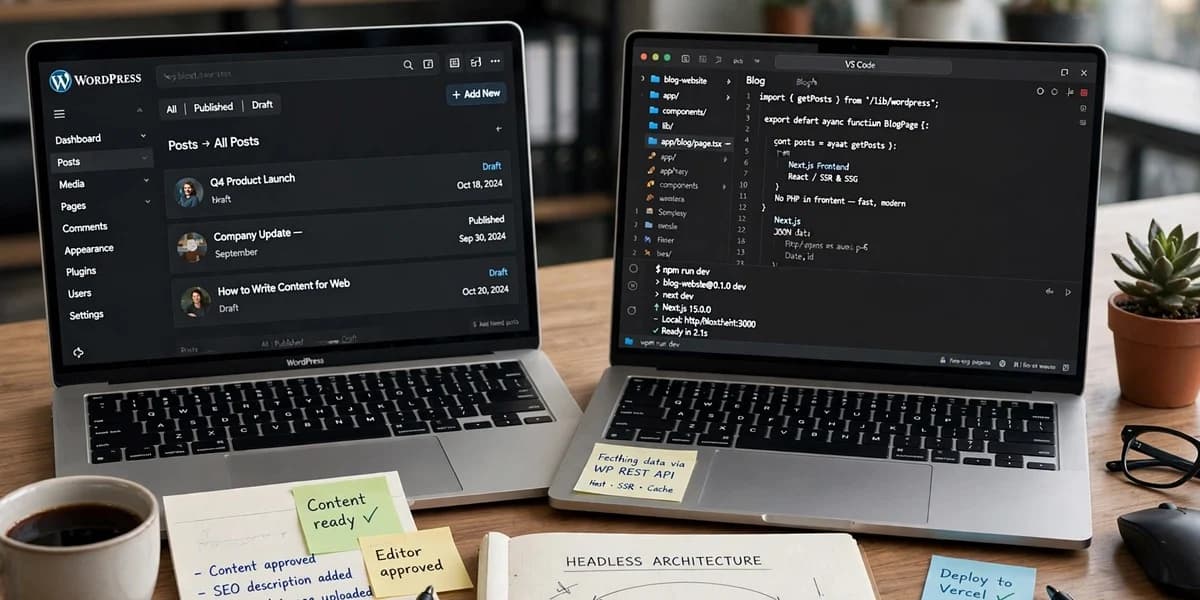
Headless WordPress with Next.js works when editors keep the WordPress they know (same editor, media library, menus and SEO plugin) and developers get typed data and a modern front end. The pieces that make it work are WPGraphQL for content, static pages with on-demand revalidation so publishing is near-instant, draft mode for previews, menus served by location, and SEO fields exposed to Next.js metadata. What breaks is anything that relied on the theme: shortcodes, page-builder output and plugins that inject front-end code.
The key challenge is keeping the editing experience reliable while making sure the Next.js frontend receives the correct content, metadata, and updates. That requires deliberate decisions about the content API, cache invalidation, preview authentication, and features that previously depended on the WordPress theme. The following sections explain the implementation choices and the checks to make before launch. Done badly, it gives editors a slower, stranger WordPress and developers a front end that is always out of date. Done well, editors barely notice and pages get faster. This is the setup we use, piece by piece, and the list of things that will break so you can plan for them.
The architecture
[Inline image to add: brand-style architecture diagram. Left: WordPress admin with editor, media, menus and SEO plugin. Middle: WPGraphQL endpoint. Right: Next.js app with cached pages. Arrows: “publish” triggers a revalidation webhook; “preview” opens draft mode with a secret.]
Architecture diagram: editors publish in WordPress, WPGraphQL serves content to a Next.js app, a save hook triggers on-demand revalidation, and preview requests use draft mode
Four moving parts:
-
WordPress stays the editing tool. It no longer renders public pages; its theme can be minimal.
-
WPGraphQL exposes posts, pages, custom fields, menus and settings as a GraphQL API.
-
Next.js fetches from that API, renders pages, caches them and serves the public site.
-
Two signals join them: a revalidation request when content is saved, and a preview route that shows drafts.
When Should You Choose Headless WordPress?
Headless WordPress is most useful when a project needs a custom frontend, structured content delivery, or tighter control over how pages are rendered and deployed. It is not automatically the right choice for every WordPress site.
Headless may be a good fit when:
-
The frontend needs custom interactions or a design system beyond the existing theme.
-
Multiple applications need to consume the same structured content.
-
The team can maintain the WordPress backend and a separate frontend application.
-
The project needs a deliberate caching, preview, and deployment workflow.
A traditional WordPress theme may be a better fit when:
-
Editors depend heavily on Elementor, Divi, shortcodes, or other theme-rendered features.
-
The site relies on plugins that generate forms, search, membership, or other frontend functionality.
-
The team has limited capacity to maintain two applications and their integrations.
-
The current site meets performance, SEO, and editorial requirements without a frontend rebuild.
Before choosing headless, estimate the ongoing development, hosting, integration, testing, and maintenance work—not just the initial build cost. Headless architecture offers flexibility, but it also introduces more components that must work together.
WPGraphQL: the content API
WPGraphQL is a free plugin that adds a GraphQL endpoint to WordPress. WPGraphQL lets a frontend request related content through a single GraphQL query, provided the required fields and extensions are available in the schema. The WordPress REST API is also a valid option and is included with WordPress core. Depending on the endpoints, custom fields, embedded resources, and caching strategy, either API may meet the project’s needs. Compare the actual queries, authentication requirements, response sizes, and maintenance costs before choosing; fewer requests alone do not guarantee better performance.
What to set up:
-
Custom fields. If you use ACF, WPGraphQL for ACF exposes field groups to the schema. Model content as structured fields and flexible sections rather than free-form HTML, so the front end can render each block as a proper component.
-
Access control. Review WPGraphQL’s security guidance and settings. Public queries should return only published content; drafts need an authenticated request.
-
Caching on the WordPress side. GraphQL queries can be expensive. WPGraphQL Smart Cache adds caching and cache invalidation for queries.
ISR and on-demand revalidation
The worst version of headless WordPress renders every page on every request by calling WordPress. It is slow and puts the editing server in the path of every visitor. A well-designed headless setup serves cached pages and invalidates or refreshes the relevant content when WordPress data changes. The exact update timing depends on the caching strategy, the revalidation method, and whether affected pages or data tags are correctly invalidated. A webhook can trigger revalidation, but it does not by itself guarantee that every affected page is immediately regenerated.
Next.js supports this directly. Pages are generated and cached, and incremental static regeneration lets them refresh on a timer or on demand. For on-demand refresh, WordPress calls a Next.js route when content is saved, and that route calls revalidatePath or revalidateTag.
How we wire it:
-
Tag each data fetch by what it depends on, such as
post:123,menusorsettings. -
Hook WordPress’s save, delete and menu-update actions to send the affected tags to a Next.js revalidation route, signed with a shared secret kept in server-side environment variables only.
-
Revalidate listing pages too: a new post affects the blog index, category pages and any “related” blocks.
-
Keep a timed revalidation as a safety net in case a webhook is missed.
Previews and draft mode
Editors expect the Preview button to work. In a headless build it has to open the Next.js site showing unpublished content. Next.js provides draft mode for exactly this: a route enables it with a secret, and while it is on, pages skip the cache and fetch fresh, including drafts.
The pieces:
-
Point WordPress’s preview link at a Next.js route such as
/api/preview?id=…&secret=…. -
That route checks the secret, enables draft mode with
draftMode()and redirects to the page. -
In draft mode, data fetches send an authenticated request to WPGraphQL so drafts and revisions are returned.
-
Show a visible “Preview” banner with an exit link, so editors never confuse a preview with the live page.
Menus
Editors should keep managing menus in Appearance → Menus. One catch: WPGraphQL’s menus documentation notes that menus are not viewable by public requests until they are assigned to a menu location. Register locations in the minimal theme (header, footer, mobile), assign menus to them, and query by location. Revalidate the menus tag when a menu is saved, since every page uses it.
SEO plugin equivalents
The SEO plugin keeps doing the editing half of its job: titles, descriptions, canonical URLs, noindex flags, social images and schema settings. The rendering half moves to Next.js.
SEO featureTheme WordPressHeadless with Next.jsTitle and meta descriptionPlugin prints tags Expose the required SEO fields through the installed plugin’s supported GraphQL integration, then map them into Next.js generateMetadata. For Yoast SEO, verify compatibility with the current Yoast SEO for WordPress, WPGraphQL, and Yoast’s WPGraphQL integration versions. Test titles, meta descriptions, canonical URLs, robots directives, social metadata, and structured data individually rather than assuming every field transfers automatically. Canonical and robotsPlugin prints tagsSame fields, rendered in metadata; canonical points at the Next.js domainXML sitemapPlugin generates itGenerate in Next.js with sitemap.ts from WordPress dataStructured dataPlugin prints JSON-LDBuild JSON-LD in the page (see Next.js JSON-LD guide)RedirectsPlugin or server rulesNext.js redirects or middleware fed from WordPressrobots.txtPlugin or filerobots.ts in Next.js
Make sure the WordPress install itself is not indexable on its own domain, or you will publish every page twice.
SEO Checks Before Launch
A working frontend and correctly mapped metadata do not, by themselves, establish that a headless migration is SEO-safe. Test the complete public site before replacing the existing WordPress theme.
-
URL mapping: Preserve existing URLs where practical. If a URL changes, map the old URL to the most relevant new destination with a direct redirect.
-
Indexability: Check that public pages return the expected HTTP status, are not unintentionally blocked, and do not carry unintended noindex directives.
-
Canonical URLs: Confirm that each indexable page points to the intended public URL, not an internal or staging domain.
-
Rendered content: Verify that important headings, body text, links, product or article content, and metadata are available in the rendered page.
-
Internal links: Check navigation, breadcrumbs, related content, and links embedded in WordPress content for references to the old domain.
-
Sitemaps and robots.txt: Confirm that the public sitemap contains the intended canonical URLs and that robots rules do not block important pages.
-
Structured data: Validate the markup against the visible page content and the relevant search engine guidelines.
-
Preview and staging: Keep private previews and staging content out of public search results without accidentally blocking the production site.
Use Google Search Console, URL Inspection, crawl testing, and rendered-page checks to validate the launch. Google can render JavaScript, but rendering and indexing are not guaranteed simply because a page works in a browser.
What breaks
Plan for each of these before launch rather than discovering them after:
-
Shortcodes and page-builder output. Content that depends on the theme rendering shortcodes or builder markup arrives as raw text or unstyled HTML. Move it to structured fields or flexible sections.
-
Front-end plugins. Forms, pop-ups, sliders, galleries, cookie banners and chat widgets that inject scripts into the theme do nothing on the Next.js site. Use their APIs, embed them deliberately, or rebuild them as components.
-
Search. WordPress search can be queried through GraphQL, but results pages, filters and highlighting are yours to build.
-
Comments and logged-in features. Anything that needs a WordPress session on the front end needs authentication across two domains.
-
Caching plugins. Page-cache plugins become irrelevant to visitors; what matters is GraphQL query caching and the Next.js cache.
-
Internal links in content. Links saved in post content may point at the WordPress domain. Rewrite them to the public domain when rendering.
-
Image URLs. Media still lives in WordPress. Serve it through
next/imagewith the WordPress host allowed, or a CDN in front.
What changes for editors, and what does not
The test of a headless WordPress build is whether editors notice. On the builds we are happy with, their day looks like this:
-
Same login, same editor. They write in the block editor or in field groups exactly as before, upload to the same media library and use the same SEO plugin panel.
-
Preview works. The Preview button opens the real site design with their draft in it, clearly marked as a preview.
-
Publishing triggers the configured revalidation workflow. When the webhook, cache invalidation, and affected routes are configured correctly, updates can become visible quickly. The actual delay depends on the implementation, so test published posts, edited posts, deleted content, category pages, menus, and related-content blocks before launch.
-
Menus and settings behave. Changing a menu or a site-wide setting updates every page that uses it.
What does change: page layouts come from a set of sections the developers built, not from a free-form page builder. That is a restriction, and it is deliberate. It keeps pages consistent, fast and accessible. Editors who relied on dragging arbitrary widgets around need a short walkthrough of the sections they now have, and a way to ask for new ones.
Launch checklist
-
WPGraphQL installed and locked down: public queries return published content only.
-
Custom fields modelled as structured data and exposed to GraphQL.
-
Revalidation hooks firing on save, delete and menu update, signed with a server-side secret.
-
Preview opens draft mode with a banner and an exit link.
-
Menus assigned to locations and queried by location.
-
SEO fields rendered: title, description, canonical, robots, social image, JSON-LD.
-
Sitemap and robots.txt generated by Next.js; WordPress domain set to noindex.
-
Every front-end plugin listed with its replacement.
-
Content links and image URLs rewritten to the public domain.
-
Existing URLs mapped and redirects tested wherever routes change.
-
Production pages checked for HTTP status, canonical URLs, robots directives, and indexability.
-
Rendered HTML checked for important content, internal links, metadata, and structured data.
-
Publish, update, delete, preview, and menu-change workflows tested end to end.
-
Cache invalidation verified for individual pages, listings, categories, and related-content components.
-
Staging and preview URLs protected from unintended indexing.
-
Production sitemap and robots.txt checked before launch.
If you are moving an existing WordPress theme site to this setup, the search side of the move matters as much as the build. We cover it in migrating a WordPress theme site to Next.js without losing rankings, and the performance side in why your Next.js app got slow. Our Next.js development team builds and maintains headless WordPress sites like this one, and the same approach powers commerce builds on our headless ecommerce page.